
Set up mobile push notifications
Learn how to set up your app to receive push notifications from the Program Builder in Dotdigital Marketing.
Understand mobile push in Dotdigital Marketing
Dotdigital Marketing can send mobile push notifications to your app users. You can send them with the Program Builder or with the omnichannel messaging API.
A push message can include an optional deep link, a URL, or custom data. Use these to start any function in your app when a user taps a push message.
Deep linking and custom data with push messagesYour app must be written to support deep links, or it must interpret custom data payloads. Dotdigital Marketing delivers the link URL or the custom data. Your app must interpret it.
To choose the tap action, and to set the deep link or custom data for each platform, see Send a deep link or custom data with a push message.
For the code you need, see the deep link section of the guide for your platform:
For platform guidance on deep links, see Android App Links and Apple's Universal Links and custom URL schemes.
Read these key concepts before you enable the push channel.
Users are addressed using email addresses
Dotdigital Marketing needs an email address for each user you want to send push notifications to; it uses the email address to create a contact. You then target your push messages at contacts.
If you must send push messages to app users who do not have an email address, you can do this with the API only. Speak to your Customer Success representative about our CPaaS APIs.
Your push audience is discovered, not imported
You cannot import data to make a contact push contactable. This makes push different from email and SMS.
Dotdigital Marketing discovers your push audience when your users open your app. The App Messaging SDK in your app sends the push tokens and the email address to Dotdigital Marketing where we either create a contact using the email address or update an existing contact.
When a contact is push contactable, the PUSHOPTIN_xxx data field has a value. If the contact is not push contactable, this field is empty.
Do not edit or amend the PUSHOPTIN fieldDotdigital Marketing manages the PUSHOPTIN_xxx data field automatically. Do not change this field, and do not put a value in it manually. This causes problems with push messaging.
You need to embed our App Messaging SDK into your app
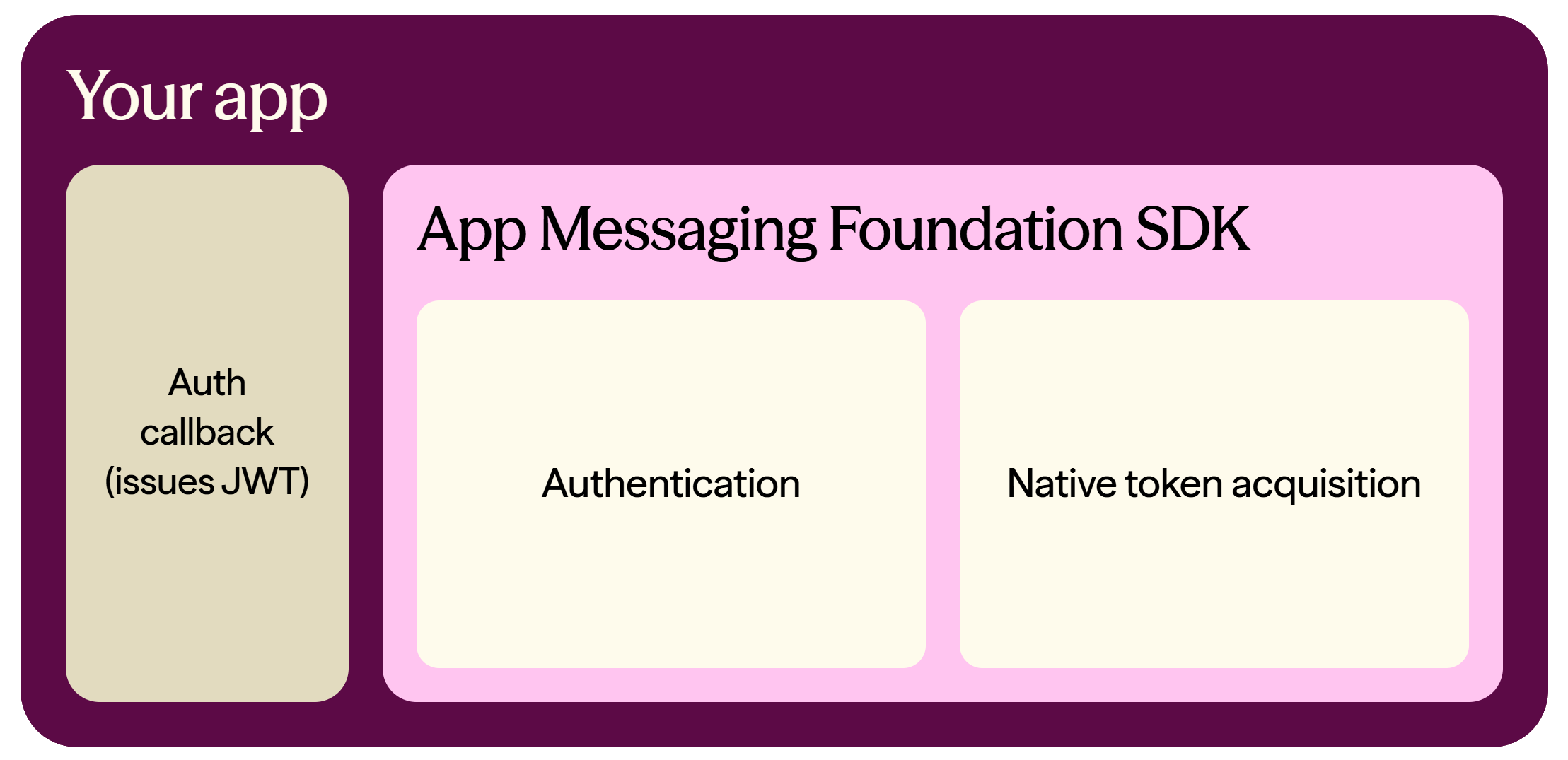
You must embed our App Messaging - Foundation SDK in your app. The SDK does two things:
- It registers your users as contacts in Dotdigital Marketing.
- It gets the push tokens from the user's device automatically, so that you can send push messages to that device.
Your app sends a security token to the SDK to register a user. The SDK validates this token. The security token must be in the JSON Web Token (JWT) format.
This diagram shows how the SDK works:
Know what the SDK does and what your app must do
The SDK does much of the work for you, but not all of it. Your app must supply some parts, and you must build others yourself.
This diagram shows which side is responsible for each stage:
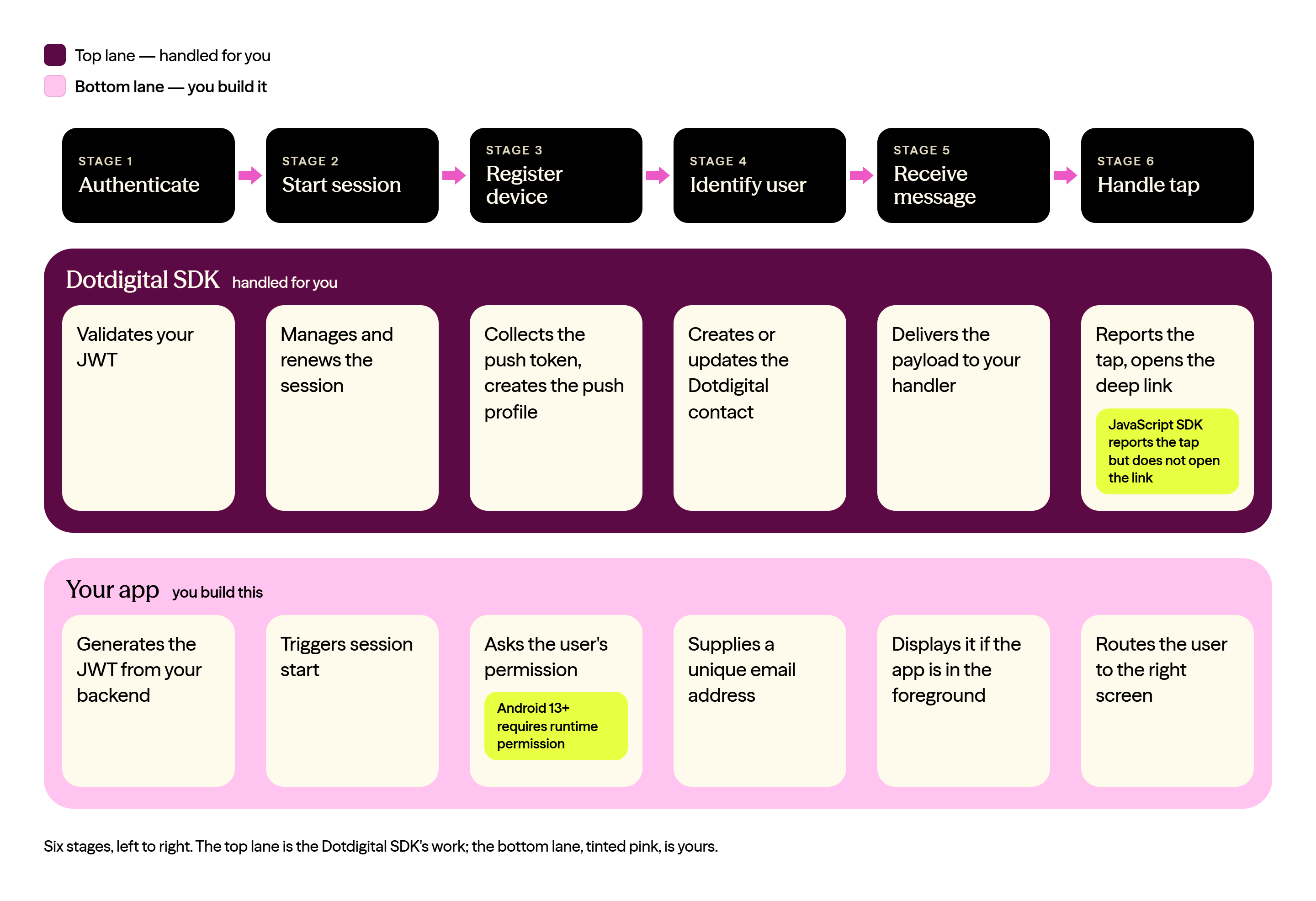
The SDK handles:
- Authentication, sessions, and push tokens.
- The push profile and the Dotdigital Marketing contact.
- Push tap reporting, and deep links on Android and iOS.
Your app must:
- Ask the user for permission to send notifications.
- Supply a JWT and a unique email address for each user.
- Display a message when your app is in the foreground.
- Route the user to the correct screen after a tap.
For the code you need, see the guide for your platform: Android, iOS, or JavaScript.
You need your mobile developers to help you configure push
You must first push enable your app before Dotdigital Marketing can send push messages through Apple or Google. Your mobile development team usually does this in the Apple and Google app admin portals.
You must then put identifiers, certificates, and tokens into Dotdigital Marketing. This lets Dotdigital Marketing send push messages to your app.
We strongly recommend that your mobile development team helps you with this configuration.
Set up push notifications in three steps
Do the following steps to send push notifications from Dotdigital Marketing to your app. These steps link Dotdigital Marketing to your app and to your users:
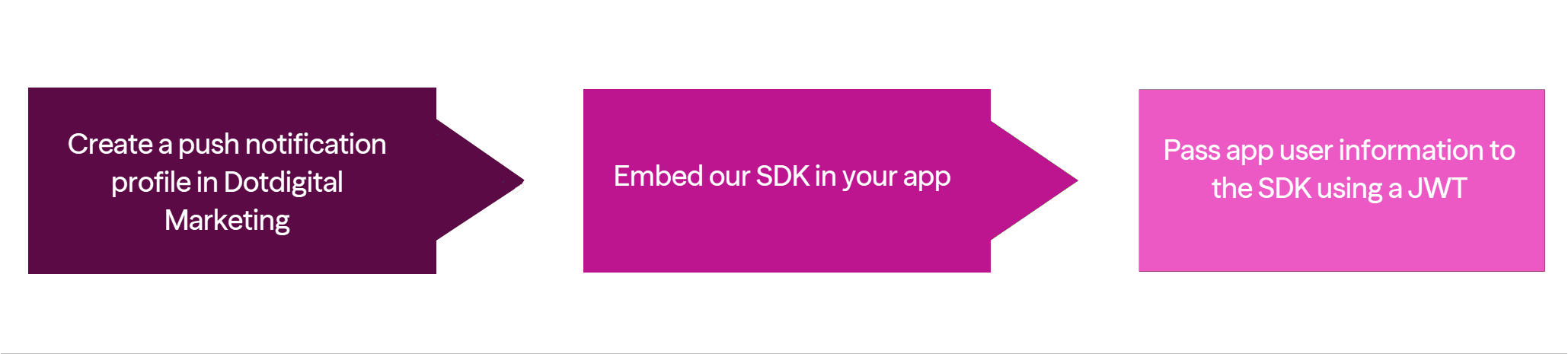
These steps do two things. They give Dotdigital Marketing the information it needs to use the Apple and Google push channels. They also make sure that your app sends the information needed to push to each app user.
When the three steps are complete, you choose what happens when a user taps a message. See Choose what happens when a user taps.
1. Create a push notification profile
In this step, you configure Dotdigital Marketing to use Google's FCM and Apple's APNS push services. This includes the tokens and certificates that Apple and Google issue when you configure push for your app. We recommend that a person with mobile development knowledge completes this step.
You also configure your security token values. This lets our SDK recognise the security tokens (JWTs) that your app sends to it. We explain how we use security tokens later in this guide.
To complete this step, see the guide Create a push notification profile.
2. Embed our SDK in your app
Dotdigital Marketing now knows how to use push with your app. Next, embed our SDK in your app. The SDK sends back the information needed to send messages to a specific user.
The SDK communicates with our platform to:
- Register your app users in Dotdigital Marketing as contacts.
- Collect the push tokens from the user's device, so that you can send push messages.
Your app must register users for push. To do this, your app sends a JSON Web Token (JWT) to the SDK. Dotdigital Marketing verifies the JWT with the authorisation information that you configured in your push notification profile in Step 1. If the JWT is valid, Dotdigital Marketing registers the user. Your app must supply a valid JWT to initialise the SDK.
For more information, see the guide Create a JWT.
To complete this step, select the link below for the technology that you used to build your app:
Supported iOS and Android versionsOur mobile SDKs support the current version of Android and iOS, and the two versions before it.
3. Pass app user information to the SDK
You must send the SDK a unique email address for each user. Dotdigital Marketing uses the email address to create or update a contact. You then target these contacts when you send push messages.
Your app registers the user when it sends a valid JWT. Your app must then update the user profile in the SDK with an email address. Dotdigital Marketing creates a contact automatically, and you can then send push messages to that app user.
To find out how to do this in your app, see Register your app users for push.
Setup is completeYour app users now show as contacts in Dotdigital Marketing. You can use the Program Builder or the omnichannel messaging API to send them push notifications.
4. Choose what happens when a user taps
Setup is complete, but you must still decide what each message does. When you send a push message, you choose one of the following actions:
- Open your app at its home screen.
- Open a deep link, so that your app opens a specific screen.
- Open a web page, a survey, or a form in the device browser.
- Send custom data, so that your app can start a function of your choice.
Your choice decides which values arrive in the payload, and therefore what your app must do with them. It also decides whether Dotdigital Marketing records the tap in your push reporting.
To find out how to send each action, and what your app receives, see Send a deep link or custom data with a push message.
Updated 27 days ago